
A while ago, I posted about pre-rendering text to improve runtime performance when using XNA SpriteFonts. Since then, I’ve managed to complete a game (Robot Legions, currently up for peer review) using my XNA codebase and got to try out my text pre-rendering solution in a real project. It worked out pretty well, but there were a few features that I wished I had implemented ahead of time. Well, while Robot Legions was being play-tested, I went ahead and implemented some of those features. Now I’ll describe those features and share a bit of (hopefully) helpful code that will let you use them in your own games.
The core functionality of my text pre-rendering solution is drawing a given string to a texture using a given font. I’m then able to use that text texture anywhere in my game as I would any normal texture. This allows me to avoid the overhead of calling DrawString() for text in my game that doesn’t have to change often.
SpriteFont demoFont = Game.Content.Load<SpriteFont>("TextRenderingDemo/DemoFont");
Texture2D textTexture = textWriter.CreateTextSpriteTexture(demoFont, "The quick, brown fox jumped over Richter Belmont");
In addition to the core functionality, I added the following features:
Button Guides
The XBLIG Creator’s site provides images of the Xbox Controller’s buttons compatible with XNA’s SpriteFont for providing on-screen control instructions. While it’s possible to combine the button images with another sprite font image and use them as one SpriteFont, I prefer to combine the button images with fonts I choose at runtime. To do this, I prepared a version of my string rendering function with extra parameters for rendering the button image and positioning it relative to the text of my choice.
SpriteFont demoFont = Game.Content.Load<SpriteFont>("TextRenderingDemo/DemoFont");
SpriteFont buttonFont = Game.Content.Load<SpriteFont>("Fonts/xboxControllerSpriteFont");
Texture2D textTexture = textWriter.CreateButtonGuideTextSpriteTexture(demoFont, buttonFont, ": Do Something", "'", 0.5f, new Vector2(0.0f, 0.0f));

Drop Shadows
In a lot of cases, just rendering SpriteFonts as is tends to feel a little flat. Drawing a darkened version of the same text offset by a couple pixels before drawing the text in question goes a long way to helping it stand out. It’s a trick I use so often that I decided to bake drop shadows into my text pre-renderer. With this functionality, a call like this:
SpriteFont demoFont = Game.Content.Load<SpriteFont>("TextRenderingDemo/DemoFont");
List<TextWriterDropShadow> dropShadows = new List<TextWriterDropShadow>();
dropShadows.Add(new TextWriterDropShadow(new Vector2(2.0f, 2.0f), Color.Black));

Texture2D textTexture = textWriter.CreateTextSpriteTexture(demoFont, "The quick, brown fox jumped over Richter Belmont", Color.White, dropShadows);
Can give me text that looks like this:

Text Borders
You’ll notice that I pass lists of drop shadows to my sprite pre-renderer. It may seem like overkill, but being able to define a multiple drop shadows allows me to create various effects when rendering text. For example, I can define a list of drop-shadows like this:
SpriteFont demoFont = Game.Content.Load<SpriteFont>("TextRenderingDemo/DemoFont");
List<TextWriterDropShadow> dropShadows = new List<TextWriterDropShadow>();
dropShadows.Add(new TextWriterDropShadow(new Vector2(-1.0f, -1.0f), Color.Black));
dropShadows.Add(new TextWriterDropShadow(new Vector2(1.0f, -1.0f), Color.Black));
dropShadows.Add(new TextWriterDropShadow(new Vector2(-1.0f, 1.0f), Color.Black));
dropShadows.Add(new TextWriterDropShadow(new Vector2(1.0f, 1.0f), Color.Black));

dropShadows.Add(new TextWriterDropShadow(new Vector2(0.0f, -2.0f), Color.Black));
dropShadows.Add(new TextWriterDropShadow(new Vector2(0.0f, 2.0f), Color.Black));
dropShadows.Add(new TextWriterDropShadow(new Vector2(-2.0f, 0.0f), Color.Black));
dropShadows.Add(new TextWriterDropShadow(new Vector2(2.0f, 0.0f), Color.Black));

Texture2D textTexture = textWriter.CreateTextSpriteTexture(demoFont, "The quick, brown fox jumped over Richter Belmont", Color.White, dropShadows);
To give me fancy bordered text like this:
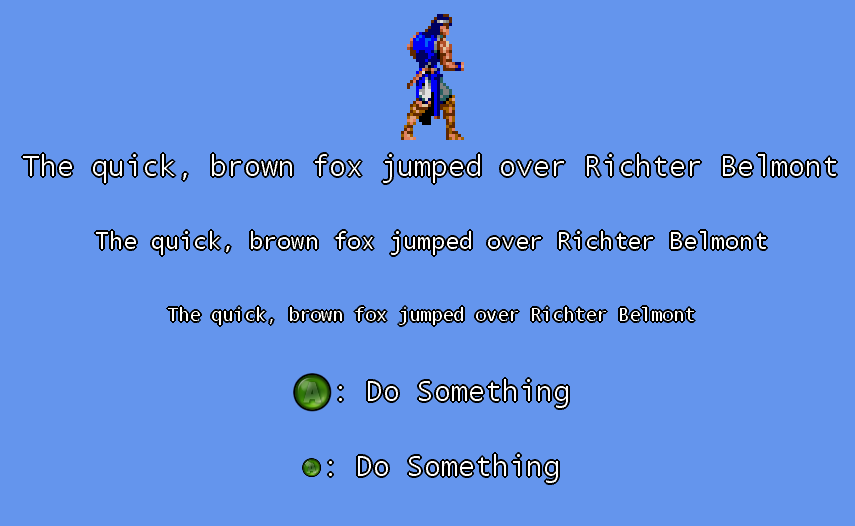
How’s that for pop?
Playing with the number of drop shadows, their offsets, and colors can allow you to produce a variety of decorations for your game’s text. Give it a try if you’re interested. You can find the code for my text pre-renderer below:
using System;
using System.Collections.Generic;
using System.Linq;
using System.Text;

using Microsoft.Xna.Framework;
using Microsoft.Xna.Framework.Graphics;

namespace EstrellaLib.Sprite
{
    public class TextWriterDropShadow
    {
        public Vector2 Offset;
        public Color Color;

        public TextWriterDropShadow(Vector2 offset, Color color)
        {
            Offset = offset;
            Color = color;
        }
    }

    public class TextTextureWriter
    {
        GraphicsDevice _graphics;
        SpriteBatch _spriteBatch;

        public TextTextureWriter(GraphicsDevice graphics)
        {
            _graphics = graphics;
            _spriteBatch = new SpriteBatch(graphics);
        }

        public Texture2D CreateTextSpriteTexture(SpriteFont spriteFont, string textString)
        {
            return CreateTextSpriteTexture(spriteFont, textString, Color.White, null);
        }

        public Texture2D CreateTextSpriteTexture(SpriteFont spriteFont, string textString, Color textColor, List<TextWriterDropShadow> dropShadows)
        {
            return RenderTextTexture(spriteFont, textString, textColor, null, "", 1.0f, Vector2.Zero, dropShadows);
        }

        public Texture2D CreateButtonGuideTextSpriteTexture(SpriteFont textSpriteFont, SpriteFont buttonGuideSpriteFont, string textString, string buttonGuideText, float buttonGuideScale, Vector2 buttonGuidePositionOffset)
        {
            return CreateButtonGuideTextSpriteTexture(textSpriteFont, buttonGuideSpriteFont, textString, buttonGuideText, buttonGuideScale, buttonGuidePositionOffset, Color.White, null);
        }

        public Texture2D CreateButtonGuideTextSpriteTexture(SpriteFont textSpriteFont, SpriteFont buttonGuideSpriteFont, string textString, string buttonGuideText, float buttonGuideScale, Vector2 buttonGuidePositionOffset, Color textColor, List<TextWriterDropShadow> dropShadows)
        {
            return RenderTextTexture(textSpriteFont, textString, textColor, buttonGuideSpriteFont, buttonGuideText, buttonGuideScale, buttonGuidePositionOffset, dropShadows);
        }

        private Texture2D RenderTextTexture(SpriteFont textSpriteFont, string textString, Color textColor, SpriteFont buttonGuideSpriteFont, string buttonGuideText, float buttonGuideScale, Vector2 buttonGuidePositionOffset, List<TextWriterDropShadow> dropShadows)
        {
            if (textSpriteFont != null)
            {
                Vector2 stringDimensions = textSpriteFont.MeasureString(textString);

                float buttonHorizontalShift = 0.0f;
                Vector2 buttonTextDimensions = Vector2.Zero;
                if (buttonGuideSpriteFont != null)
                {
                    buttonTextDimensions = buttonGuideSpriteFont.MeasureString(buttonGuideText);
                    buttonTextDimensions.X *= buttonGuideScale;

                    buttonTextDimensions.X += Math.Abs(buttonGuidePositionOffset.X);
                    if (buttonGuidePositionOffset.X < 0.0f)
                    {
                        buttonHorizontalShift = -buttonGuidePositionOffset.X;
                    }

                    //Eliminate potential non-integral values that could result in lost pixels on texture render
                    buttonTextDimensions.X = (float)Math.Ceiling(buttonTextDimensions.X);
                }

                Vector2 dropShadowPositionAdjust = Vector2.Zero;
                Vector2 dropShadowSizeAdjust = Vector2.Zero;
                if (dropShadows != null)
                {
                    Vector2 lowestVals = Vector2.Zero;
                    Vector2 hightestVals = Vector2.Zero;
                    foreach (TextWriterDropShadow dropShadow in dropShadows)
                    {
                        if( dropShadow.Offset.X < 0.0f )
                            lowestVals.X = Math.Min(lowestVals.X, dropShadow.Offset.X);

                        if (dropShadow.Offset.Y < 0.0f)
                            lowestVals.Y = Math.Min(lowestVals.Y, dropShadow.Offset.Y);

                        if (dropShadow.Offset.X > 0.0f)
                            hightestVals.X = Math.Max(hightestVals.X, dropShadow.Offset.X);

                        if (dropShadow.Offset.Y > 0.0f)
                            hightestVals.Y = Math.Max(hightestVals.Y, dropShadow.Offset.Y);
                    }

                    dropShadowPositionAdjust.X = Math.Abs(lowestVals.X);
                    dropShadowPositionAdjust.Y = Math.Abs(lowestVals.Y);

                    dropShadowSizeAdjust.X = Math.Abs(lowestVals.X) + Math.Abs(hightestVals.X);
                    dropShadowSizeAdjust.Y = Math.Abs(lowestVals.Y) + Math.Abs(hightestVals.Y);
                }

                RenderTarget2D renderTarget = new RenderTarget2D(_graphics, (int)stringDimensions.X + (int)buttonTextDimensions.X + (int)dropShadowSizeAdjust.X, (int)stringDimensions.Y + (int)dropShadowSizeAdjust.Y);

                _graphics.SetRenderTarget(renderTarget);
                _graphics.Clear(Color.Transparent);
                _spriteBatch.Begin(SpriteSortMode.Immediate, BlendState.AlphaBlend, SamplerState.PointClamp, null, null);

                if (buttonGuideSpriteFont != null)
                {
                    _spriteBatch.DrawString(buttonGuideSpriteFont, buttonGuideText, dropShadowPositionAdjust + new Vector2(buttonHorizontalShift, buttonTextDimensions.Y * -0.25f * buttonGuideScale) + buttonGuidePositionOffset, Color.White, 0.0f, Vector2.Zero, buttonGuideScale, SpriteEffects.None, 1.0f);
                }

                Vector2 textPosition = dropShadowPositionAdjust + new Vector2(buttonHorizontalShift + buttonTextDimensions.X, 0.0f);
                if (dropShadows != null)
                {
                    foreach (TextWriterDropShadow dropShadow in dropShadows)
                    {
                        _spriteBatch.DrawString(textSpriteFont, textString, textPosition + dropShadow.Offset, dropShadow.Color);
                    }
                }

                _spriteBatch.DrawString(textSpriteFont, textString, textPosition, textColor);

                _spriteBatch.End();
                _graphics.SetRenderTarget(null);

                return renderTarget;
            }
            return null;
        }
    }
}

/* Button Guide Mapping
Character	Image
Space       Left Thumbstick
!	        Directional Pad
"	        Right Thumbstick
#	        BACK
$	        Guide
%	        START
&	        X
'	        A
(	        Y
)	        B
*	        Right Shoulder
+	        Right Trigger
,	        Left Trigger
-	        Left Shoulder
*/


